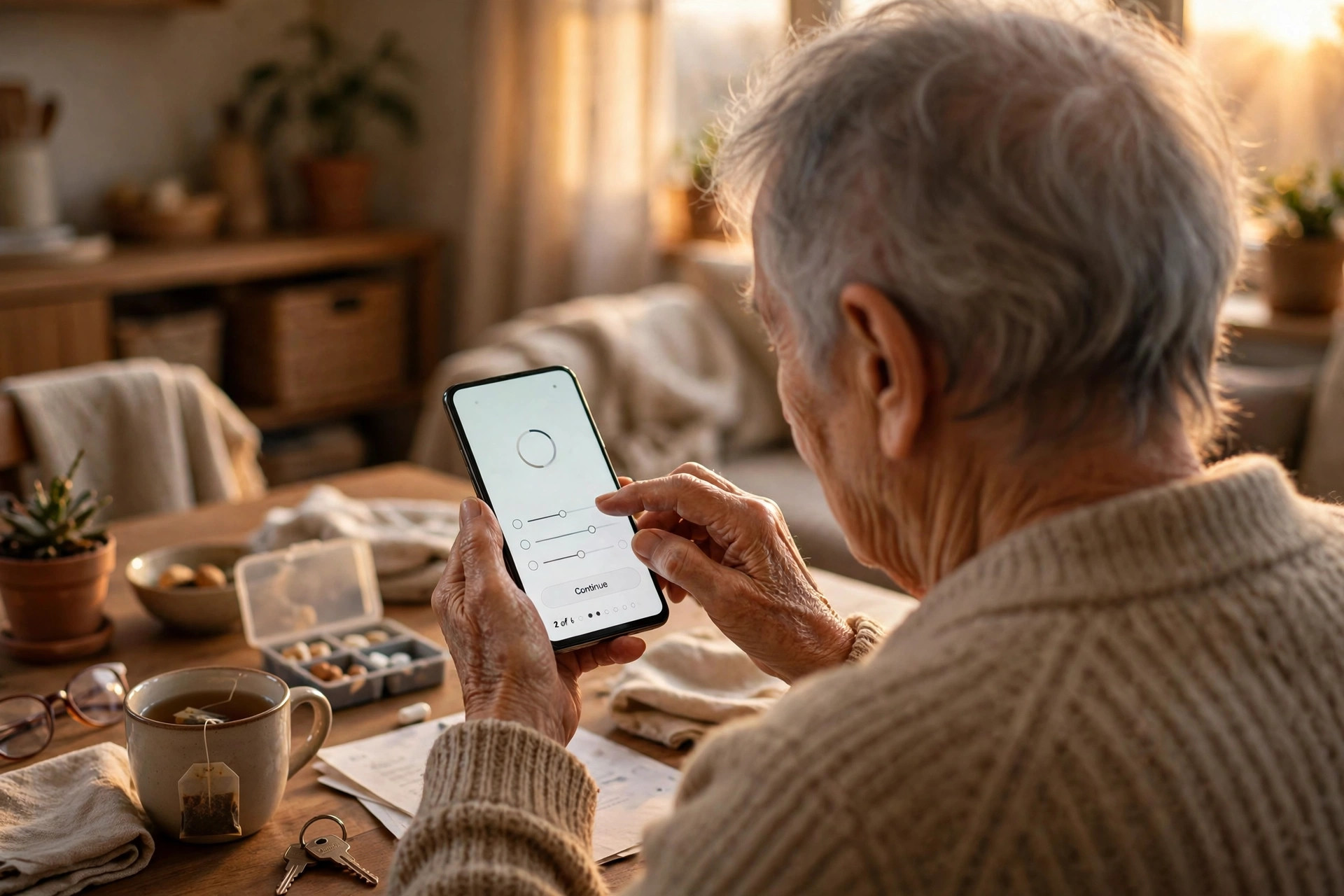
The phone is already bought. This guide starts from there — one Sunday afternoon, in this order, with the phone in your hand. If you have not chosen a phone yet, read ‘How to choose a first phone for your parents’ first (https://newshoxs.com/how-to-choose-a-first-phone-for-your-parents/); that one is about choosing. This one is only about setting up the phone you already have, so the person using it does not have to learn it all at once.
My neighbour’s father got a new phone last year. It was a good phone, but for the first month he barely used it. The icons were small, notifications kept popping up, and he was afraid he would press the wrong button and break something. His daughter then spent one Sunday afternoon setting it up properly. Now he calls his brother every morning, sends photos of his garden on WhatsApp, and checks the weather before he goes for a walk.
That is the real job here. It is not about buying the most expensive phone. It is about removing the small points of friction that make an older person put the phone down.
Start by asking what they want to do with it. For most people over 65, the list is short: call family, receive calls, use WhatsApp, look at photos, check the time and weather, and maybe listen to bhajans or old songs. If you set up the phone around that list, it will feel useful from day one. If you set it up like your own phone, with twenty apps and five accounts, it will feel like a test.
Step 1 — Make the screen easy to read first
Do this before anything else. Go to Settings, then Display, and increase the font size and display size. On most Android phones this is under Display > Font size and Display size. On an iPhone, go to Settings > Accessibility > Display and Text Size, then turn on Larger Text.
Choose a size where they can read a WhatsApp message without holding the phone very close or reaching for glasses. Then increase the brightness a little and turn off auto-brightness if it keeps changing in a way that confuses them. A steady, bright screen is easier than a screen that keeps dimming.
Next, turn on the simple or easy mode if the phone has one. Samsung calls it Easy Mode. Some other Android phones call it Simple Mode. This makes icons bigger, the home screen cleaner, and the keyboard easier to use. It is not a lesser mode. It is a mode made for people who want fewer choices on screen.
If the phone does not have an easy mode, you can do the same thing by hand: keep only six to eight apps on the home screen, move the rest into the app drawer, and remove widgets they do not need.
Step 2 — Keep the home screen to what matters
Put the Phone app, WhatsApp, Contacts, Camera, Gallery, Clock, and one music or radio app on the first screen. That is enough. Put your own number and the numbers of two or three close family members as direct contacts on the home screen, with a photo for each person. A photo is easier to recognise than a name in small text.
Show them how to make a call in three ways: tapping the photo, opening Contacts and tapping a name, and using recent calls. Then practise it together. Call them from another room and let them answer, then ask them to call you back. The first successful call matters more than any explanation.
Set a clear ringtone, loud enough to hear from the next room, and turn the vibration on. Many older people miss calls because the ringtone is soft or the phone is on silent after someone changed a setting by accident. Check the volume every time you visit, and show them the volume buttons on the side.
Add their name and a family member’s number to the lock screen, if the phone allows it. If the phone is lost, the person who finds it can call home without opening the phone.
Step 3 — Set up WhatsApp and photos in a simple way
WhatsApp is usually the app they will use most. Set it up with their number, add a profile photo, and then add the family group. Show them how to send a voice message, because typing can be slow and tiring. Press and hold the microphone button, speak, and release. That one skill opens up a lot.
Show them how to open a photo that someone sent, and how to take a photo and send it back. Keep the camera on the home screen and set it to the normal photo mode, not portrait or video. If the camera keeps opening in the wrong mode, they will think they have done something wrong.
Turn on automatic backup for WhatsApp, once a day or once a week, so photos and chats are not lost if the phone is changed. Use the same Google account for this on Android, and check that the phone has enough storage. If storage fills up, WhatsApp stops working well. Delete old videos from family groups once a month, or show them how to do it.
Step 4 — Make the phone safe from spam and mistakes
This part is important in India, because spam calls and fake messages are common. Turn on the phone’s spam filter if it has one, and install the caller ID app that your family already uses, if you trust it. Show them a real example: a call from an unknown number that says their bank account will be closed, or a message with a link offering a prize. Tell them clearly: no bank will ask for an OTP on a call, and they should never share an OTP with anyone.
Set up a screen lock that they can remember. A four-digit PIN is often easier than a pattern, and fingerprint is easier still if their fingers are not too dry. Write the PIN down on paper and keep it at home, not in the phone. If they forget it, you will need it.
Do not turn on payment apps on day one. Start with calls and WhatsApp. Add UPI or a banking app only after they are comfortable, and only if they ask for it. When you do add it, set a daily limit, turn on transaction alerts to your number as well if the bank allows it, and practise one small payment together.
Also turn off the setting that allows apps to be installed from unknown sources, and turn on automatic updates for apps. That reduces the chance of a harmful app getting in through a link.
One-afternoon checklist — do them in this order
- Font and display size increased, brightness steady
- Only six to eight apps on the home screen, with photos for key contacts
- Ringtone loud, vibration on, volume checked
- WhatsApp set up, voice messages practised, backup turned on
- Screen lock set, PIN written down at home
- Spam filter on, OTP rule explained, no payment app on day one
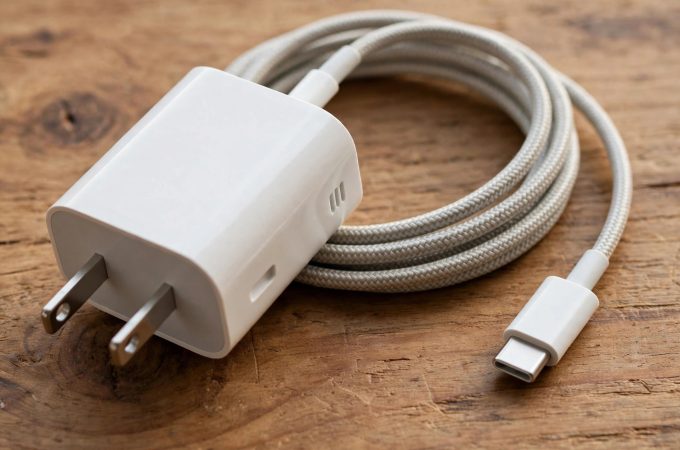
- One charger and cable in a fixed place, updates set to overnight
Sit with them for a few days after the setup. Ask what is hard, and fix that one thing. Then ask again next week. A phone becomes easy in small steps, not in one long lesson. The aim is not a perfect phone. It is a phone they pick up without worry, and use to stay close to the people they love.

Amelia Brooks
Editorial pen namePractical guides to phones, two-wheelers and gaming from the NewsHoxs desk. Read the bio & browse all stories ↗
See our coverage methodology or send a correction.