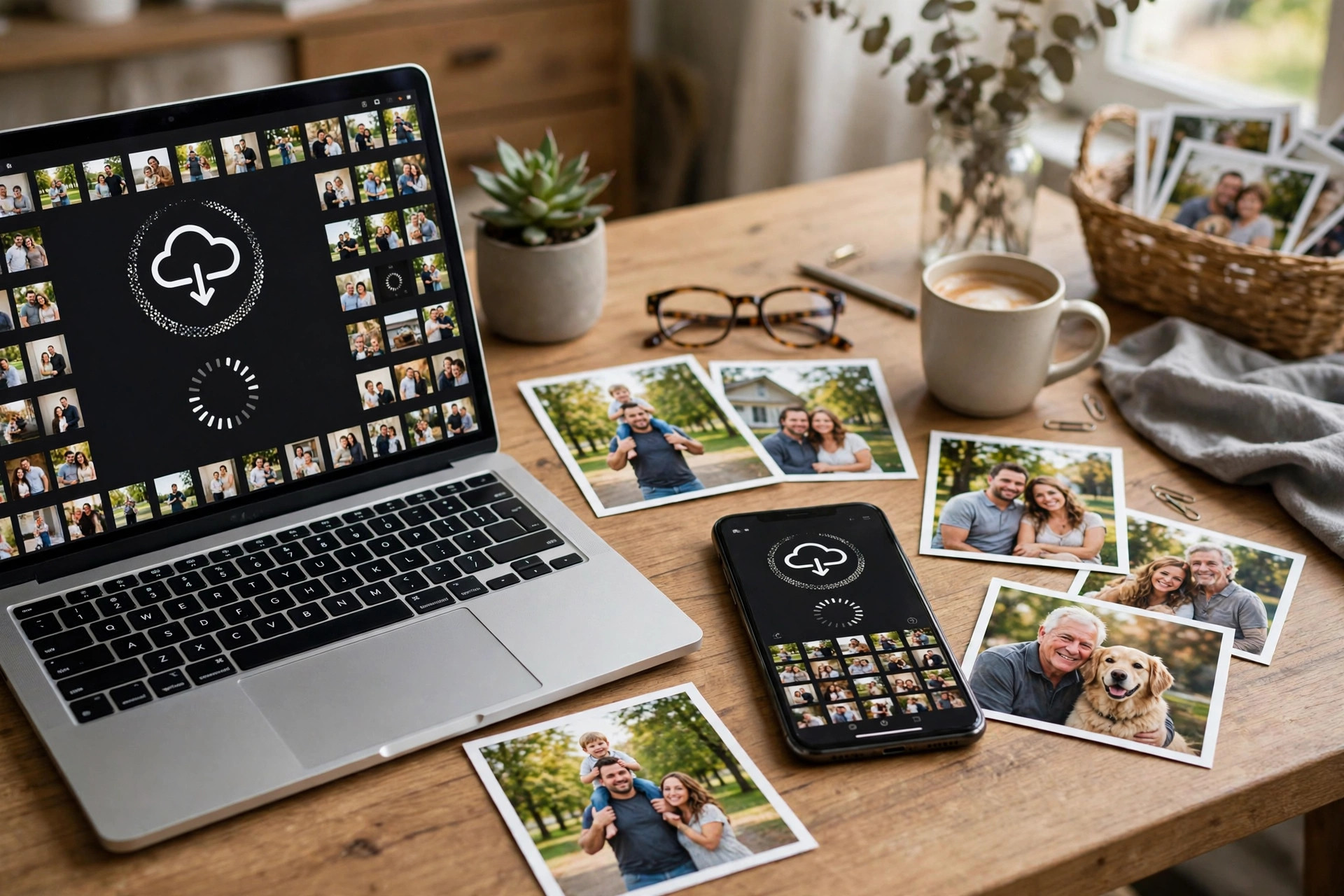
A phone can be lost, stolen, or broken in a moment. A cracked screen can be repaired, but photos that were only on that phone can be lost for good. Family photos, photos of children growing up, and photos from a trip are hard to take again.
Many people know they should back up their photos, but they do not do it because it sounds like work. The truth is that a simple backup takes a few minutes to set up, and then it runs on its own. You do not need to think about it every day.
The rule is simple: keep your photos in two places, not one. One copy on your phone, and one copy somewhere else. That somewhere else can be a cloud service, a computer, or a hard drive. If one copy is lost, the other is still there.
Start with a cloud backup, set to Wi-Fi only
The easiest backup for most people is a cloud backup. Your phone already has a photo app that can back up photos to the cloud. Turn it on, and set it to back up on Wi-Fi only. That way, it will not use your mobile data.
Check how much free storage the cloud service gives you. If you take many photos, you may need more space than the free plan gives. You can pay for more space, or you can back up only the photos you want to keep, and delete the rest from the cloud.
Let the backup run overnight on Wi-Fi. Plug in the phone, connect to Wi-Fi, and let it upload. It may take a night or two the first time if you have many photos. After that, it will only upload new photos, which is much faster.
Check once a month that the backup is working. Open the photo app, look at the backup status, and make sure the recent photos are there. A backup that stopped working months ago will not help you when you need it.
Keep a second copy, not just the cloud
A cloud backup is a good start, but it is not the only copy you should have. If you lose access to your account, or if you forget the password, you may not be able to get your photos back.
Keep a second copy on a computer or an external hard drive. Once a month, connect your phone to your computer and copy the new photos to a folder. Name the folder by month and year, so you can find photos later. For example, "2026-11 Family" is easier to find than "New Folder".
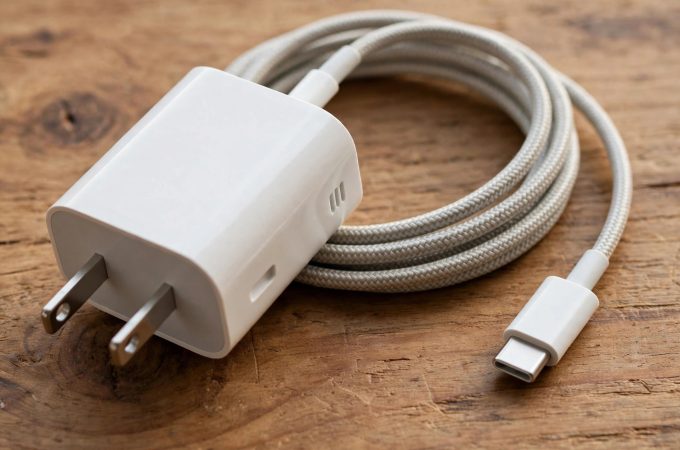
If you do not have a computer, you can use a pen drive that connects to a phone, or a hard drive that you keep at home. The important thing is that the second copy is not on the same phone.
Keep the second copy in a safe place. A hard drive in a drawer at home is fine for most people. If you have very important photos, keep a copy at a family member's house as well, so a fire or a flood at home does not lose both copies.
Clean up as you back up
Backing up is also a good time to clean up. Many of us take many photos of the same thing, and keep all of them. That fills up storage and makes it hard to find the good ones.
After a backup, delete the blurry photos, the duplicates, and the photos you took by mistake. Keep the best one or two from a set, and delete the rest. That will free up space on your phone, and it will make your backup smaller and easier to manage.
Delete screenshots you no longer need, and old photos from WhatsApp groups that you have already saved. Those take up space, and they are often not photos you want to keep for years.
Do this once a month, for ten minutes. It is enough to keep the phone and the backup tidy, without spending a whole day on it.
What to do if you change phones
When you get a new phone, do not sell or give away the old phone until you have checked that the photos are on the new phone and in the backup. That is the most common way people lose photos.
Set up the new phone, sign in to the same photo account, and let it download the photos. Check a few old photos to make sure they are there. Then, copy the photos to your computer as well, before you reset the old phone.
If you are giving the old phone to a family member, reset it only after you have checked the backup. A reset deletes everything on the phone, and there is no way to get it back after that.
Quick checklist
- Turn on cloud backup, and set it to Wi-Fi only.
- Let the first backup run overnight on Wi-Fi, plugged in.
- Check once a month that recent photos are backed up.
- Keep a second copy on a computer or hard drive, named by month and year.
- Delete blurry photos, duplicates, and old screenshots after a backup.
- Before you change phones, check that photos are on the new phone and in the backup.
- Do not reset an old phone until you have checked the backup.
- Keep your account password safe, and write it down at home if you need to.
Photos are memories, not just files. A phone can be replaced, but a photo of a family moment cannot be taken again in the same way. A backup that runs on its own, plus a second copy on a computer or hard drive, is enough to keep those memories safe.
Set up the backup today, while your phone is working. It takes a few minutes, and it will save you a lot of worry later.

Amelia Brooks
Editorial pen namePractical guides to phones, two-wheelers and gaming from the NewsHoxs desk. Read the bio & browse all stories ↗
See our coverage methodology or send a correction.