
A successful Android transfer ends when you can find and use your important data on the new phone. A completed progress bar is only one checkpoint. Keep the old handset available until you have checked local files, app data and the sign-ins you depend on.
Use the four groups below to make a short inventory before starting. This is a migration checklist, rather than a claim that every manufacturer transfers the same items or offers the same setup screens.
Separate the data before choosing a transfer method
| Group | Put on your list | Your completion check |
|---|---|---|
| Account-synced information | Contacts, calendar entries and cloud photo library | Open the correct account and find an older item |
| Local files | Downloads, documents, recordings and camera folders | Open a chosen file on the new phone |
| App-specific information | Chat history, saved projects and offline content | Check inside the relevant app |
| Access and recovery | Important account sign-ins and recovery arrangements | Confirm that you can sign in independently |
Pick a small sample that matters to you: a contact saved last year, a downloaded ticket, an older photograph and a recent conversation. Write down their names or dates. Searching for these known items is a more useful check than comparing the number of icons on two home screens.
Check storage and backup status first
Google’s Android guidance recommends making the transfer during initial setup; later options depend on the device. Check available space on both handsets and the account selected for backup. Google also warns that apps do not all back up or restore their data, and that restoring a backup from a higher Android version to a lower one is unsupported.
A storage decision belongs before the copy starts. Our 128GB versus 256GB storage worksheet helps separate the files you need locally from a cloud library. A new phone with a larger advertised capacity still needs room for its system, apps and future downloads.
Choose cable or wireless without guessing
Android setup supports cable and wireless routes. Follow the instructions shown by the new device and keep both phones charged. A matching connector does not establish what a cable can transfer; use our USB-C charging and data cable guide before buying an adapter simply because it fits.
Make the first attempt easy to diagnose. Stay with the setup process, note which categories you selected and record any message about excluded data. If a transfer stops, keep that information rather than immediately wiping the old phone and trying to reconstruct what happened.
Give chats and downloads their own checks
Google identifies downloads and some app data among the items that may need separate attention. WhatsApp restoration follows its own backup process. Treat the presence of an app icon as separate from the presence of its conversations or files.
For example, imagine that your camera photos appear but a PDF in Downloads is missing. That is a specific unfinished task: locate and copy that document through a supported route. Repeating the entire migration without identifying the missing category makes it harder to know whether anything improved.
Use a copied, checked, missing worksheet
- Write one row for each important category, with the old phone’s location or app name.
- Mark copied only when the transfer reports it included that category.
- Mark checked after opening your chosen sample on the new device.
- Keep a separate missing column with the next action, such as an app’s own restore process.
Do not put passwords or recovery codes in this worksheet. Its purpose is to track progress, not to become a second store of account secrets.
Reset the old phone after the handover is complete
Before trading in the old handset, run through the checked column once more. Can you open the document, find the old photograph and use the important apps without borrowing a code from a device you are about to surrender? Resolve the remaining items first, then follow the manufacturer’s reset and trade-in instructions.
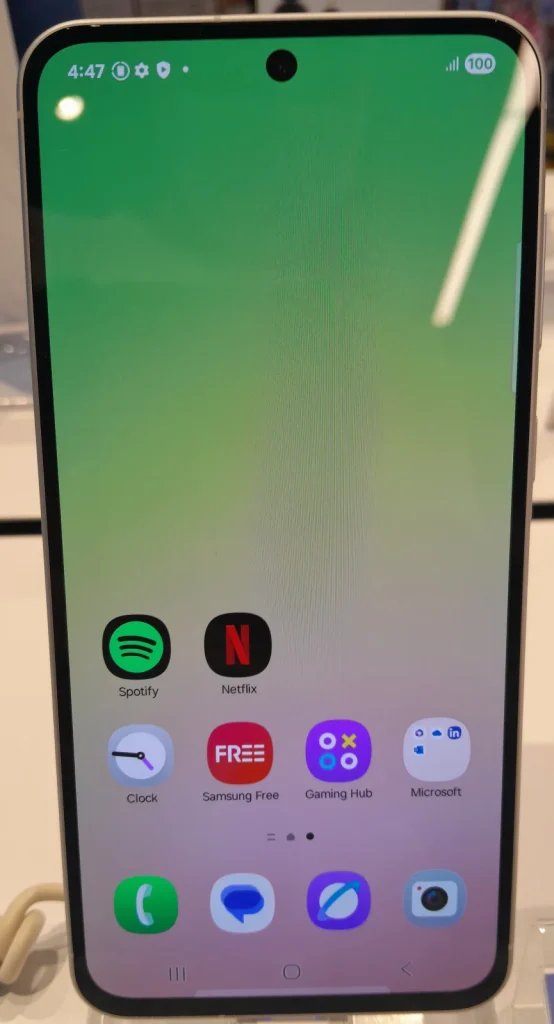
If you are still choosing the replacement, the Galaxy A56 buying guide puts storage and ownership questions alongside the hardware features. A migration plan is part of that purchase decision, especially when the old phone will leave your possession immediately.

Amelia Brooks
Editorial pen namePractical guides to phones, two-wheelers and gaming from the NewsHoxs desk. Read the bio & browse all stories ↗
See our coverage methodology or send a correction.

.jpg)