Your mobile data pack should last the month, but it runs out in two weeks. You have not watched more videos than usual. You have not downloaded large files. So where did the data go?
In most cases, it went to apps running in the background. They update, download, back up photos, and play videos without you opening them. A social media app can use a lot of data just by refreshing your feed. A photo app can back up hundreds of photos over mobile data if the setting is wrong.
The fix is not to stop using your phone. It is to find the apps that use the most data, and change their settings so they only use Wi-Fi for the heavy work.
Find out which apps are using your data
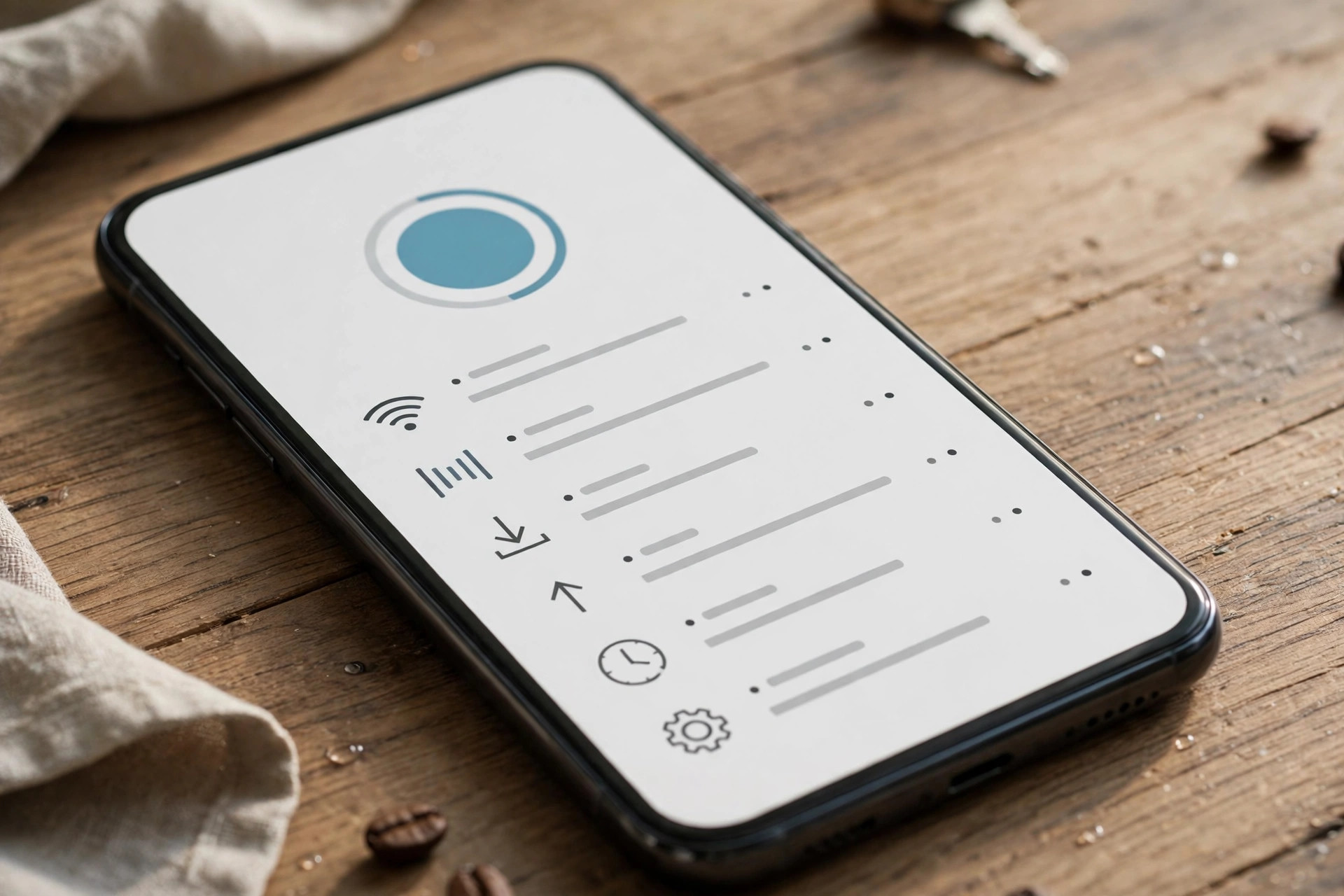
Before you change anything, check where the data is going. On Android and iPhone, you can see data use by app in settings. Look at the last 30 days if you can.
You will often see a pattern. One or two apps use most of the data. It may be a video app, a social media app, or a cloud backup app. Those are the apps to fix first.
Also check the difference between foreground and background use. Foreground is data you used while the app was open. Background is data the app used while you were not using it. If background use is high for an app, that app is the problem.
Write down the top three apps by data use. Those are the ones you will change first. Do not try to fix every app at once.
Turn off background data for the worst apps
Once you know the top apps, turn off background data for the ones that do not need it. On Android, go to settings, then apps, then the app, then mobile data, and turn off background data. On iPhone, go to settings, then the app, and turn off mobile data for that app, or turn off background refresh.
Keep background data on for apps you need to work in real time, like messaging and banking. Turn it off for games, shopping, news, and video apps that can wait until you open them.
Turn off background refresh for apps that do not need to update all the time. A news app does not need to refresh every hour if you only read it in the evening. A shopping app does not need to update in the background at all.
If an app keeps using data even after you turn off background data, check its own settings inside the app. Many apps have a separate setting for data use, auto-play, and downloads.
Stop auto-play, auto-download, and auto-update on mobile data
Auto-play is a quiet data eater. A video that plays on its own as you scroll uses data, even if you do not watch it. Turn off auto-play in social media and video apps, or set it to Wi-Fi only.
In WhatsApp and other messaging apps, turn off auto-download for photos and videos on mobile data. Set it to Wi-Fi only, or turn it off and download only the files you want. Family groups in India can send dozens of photos and videos a day. Those add up fast.
Turn off app updates on mobile data. Set your app store to update apps on Wi-Fi only. A single app update can be 100 MB or more. Five updates in a day can use half a gigabyte without you noticing.
Turn off photo and video backup on mobile data. Set your photo app to back up on Wi-Fi only. If you take many photos, a backup over mobile data can use a lot of data in one day.
Use data saver and set a limit
Most phones have a data saver mode. Turn it on. It will stop many apps from using data in the background, and it will reduce the quality of images and videos in some apps. You may not notice much difference in daily use, but your data will last longer.
Set a data warning and a data limit in settings. Set the warning to about 75 percent of your monthly pack, and the limit to the full pack size. When you reach the warning, you will know to be careful for the rest of the month.
Check your data use once a week. It takes a minute, and it helps you catch a problem early. If an app suddenly uses a lot of data one week, check if it updated, or if a setting changed.
A few habits that save data every day
Use Wi-Fi when you can, especially for large downloads, video calls, and app updates. If you are at home or at work, connect to Wi-Fi and let the phone do the heavy work there.
Download films, music, and maps on Wi-Fi before you travel. That way, you do not need to stream them on mobile data.
Watch videos at a lower quality on mobile data if you need to watch them on the go. A lower quality video uses much less data, and on a phone screen the difference is often small.
Quick checklist
- Check data use by app, and note the top three apps.
- Turn off background data for games, shopping, and news apps.
- Turn off auto-play, and set it to Wi-Fi only.
- Turn off auto-download for photos and videos on mobile data.
- Set app updates and photo backup to Wi-Fi only.
- Turn on data saver, and set a warning at 75 percent of your pack.
- Download films, music, and maps on Wi-Fi before travel.
- Check data use once a week.
Mobile data does not disappear on its own. It goes to apps that are busy in the background, to auto-play videos, and to updates you did not ask for. Find the top apps, change their settings to Wi-Fi only for heavy work, and turn on data saver. Those steps are enough for most people to make a monthly pack last the month.
If your data still runs out very fast after you have tried these steps, check if your phone is sharing data with another device, or if a new app was installed recently. Sometimes the answer is one app, and one setting.

Amelia Brooks
Editorial pen namePractical guides to phones, two-wheelers and gaming from the NewsHoxs desk. Read the bio & browse all stories ↗
See our coverage methodology or send a correction.